How to Integrate an AI Chatbot into Your LMS in 5 Steps


Integrating an AI chatbot into your LMS can transform your learner support: 24/7 availability, personalized answers, and reduced workload for your teams. But where to start? This guide walks you through 5 concrete steps to successfully integrate an AI assistant into your learning platform.
Related Guides
Why Integrate an AI Chatbot into Your LMS?
Before diving into the steps, let's understand why this integration makes sense. In a traditional setup, learners wait hours or days for answers to simple questions: “Where do I find module 3?”, “What's the deadline for the assignment?”, “How do I reset my password?”. These repetitive questions represent up to 80% of all support requests in training organizations.
An AI chatbot directly integrated into your LMS solves this by providing instant, contextual answers based on your actual course content. It's not a generic FAQ — it's an intelligent assistant that understands your training material.
Step 1: Define Your Objectives
Identify the Problem to Solve
Before selecting any tool, you need to clarify what you expect from the chatbot. The objectives will determine the type of solution, the level of configuration, and the metrics to track.
Common use cases for AI chatbots in training include:
- Answering repetitive questions — deadlines, enrollment procedures, technical access
- Guiding learners through content — suggesting modules, providing explanations, offering practice exercises
- Reducing instructor workload — automating administrative tasks and freeing time for personalized support
- Providing 24/7 support — assisting learners outside business hours, especially for remote or international audiences
Set Measurable Goals
Define KPIs from the start. For example:
Reduce support tickets by 50% within 3 months
Achieve 85% learner satisfaction with chatbot responses
Average response time under 5 seconds
Step 2: Verify LMS Compatibility
Understanding Integration Standards
Not all chatbots integrate the same way with every LMS. The most common integration methods are:
| Method | Pros | Cons | Best For |
|---|---|---|---|
| LTI 1.3 | Standard protocol, secure, works with most LMS | Requires LMS admin access | Moodle, Canvas, Blackboard |
| JavaScript embed | Quick setup, no plugin needed | Less deep integration | Any web-based LMS |
| Native plugin | Deep LMS integration | Platform-specific, maintenance | Moodle (open-source plugins) |
| API integration | Maximum flexibility | Requires development | Custom LMS, enterprise |
Check Your LMS Capabilities
Before choosing a solution, verify that your LMS supports at least one of these integration methods. Most modern LMS platforms (Moodle 4+, Canvas, Blackboard Ultra) support LTI 1.3, which is the recommended standard for secure, interoperable integrations.
Criterium's Approach
Criterium supports both LTI 1.3 for deep LMS integration and a simple link for platforms without LTI support. This means you can integrate regardless of your LMS choice.
Step 3: Configure the Chatbot
Upload Your Training Content
The value of an AI chatbot lies in its ability to answer questions based on your actual training material. This means you need to feed it your content: course documents, PDFs, presentation slides, FAQ documents, and any other relevant resources.
The chatbot uses RAG (Retrieval-Augmented Generation) technology to search through your content and generate accurate, contextual answers. The better your content is structured, the more relevant the answers will be.
Customize Behavior and Tone
A good chatbot should reflect your organization's identity. Configure:
- Welcome message — set the right tone from the first interaction
- System instructions — define the chatbot's role, boundaries, and personality
- Language — ensure the chatbot responds in your learners' language
- Fallback behavior — what happens when the chatbot doesn't know the answer
“The quality of an AI chatbot is directly proportional to the quality of the content it's trained on. Invest time in curating your knowledge base.”
Step 4: Integrate into the LMS
Technical Integration
Once your chatbot is configured, it's time to connect it to your LMS. The process varies depending on the integration method:
For LTI 1.3 Integration (Recommended)
- 1. Register the chatbot as an external tool in your LMS admin panel
- 2. Enter the provided Launch URL, Client ID, and Public Key
- 3. Configure deployment settings (which courses, visibility)
- 4. Add the tool as an activity in the desired courses
For Link-Based Integration
- 1. Copy the chatbot's unique URL
- 2. Add it as a link or resource in your course
- 3. Share with learners via email or course announcements
Test Before Launch
Before rolling out to all learners, conduct a pilot test with a small group. Ask them typical questions and verify the accuracy of responses. Common things to check:
- Does the chatbot answer correctly based on your course content?
- Is the tone appropriate for your audience?
- Does it handle edge cases gracefully (unknown questions, off-topic requests)?
- Is the integration seamless within the LMS interface?
Cost: €5 per active user/month (with Criterium). Result? Better 24/7 support and teaching teams freed for more complex tasks.
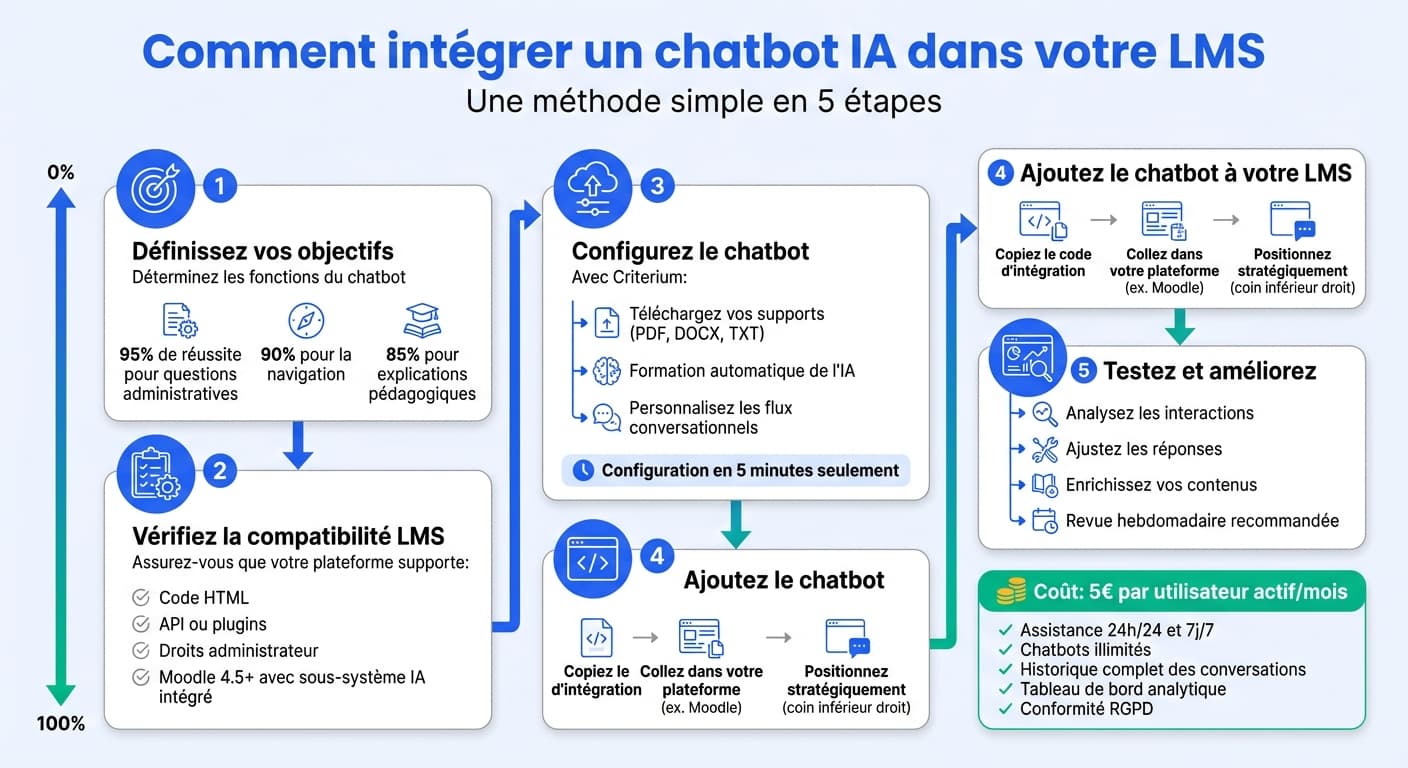
Step 5: Optimize and Iterate
Monitor Performance
Once live, track your chatbot's performance through analytics. Key metrics include:
- • Number of conversations per day/week
- • Average messages per conversation
- • Peak usage hours
- • Most active courses
- • Learner satisfaction ratings
- • Unanswered question rate
- • Most common topics
- • Support ticket reduction
Continuously Improve
Use the analytics to refine your chatbot over time:
- Add missing content — when the chatbot can't answer, it often means your knowledge base has gaps
- Update training material — keep content current as courses evolve
- Adjust instructions — refine the chatbot's behavior based on learner feedback
- Scale gradually — start with one course, then expand to your full catalog
Pro Tip
Review your chatbot's conversation logs regularly. The questions learners ask reveal what's unclear in your training material — making the chatbot not just a support tool, but a powerful feedback mechanism for course improvement.
Integration Checklist
Define clear objectives and KPIs
Verify LMS compatibility (LTI 1.3 preferred)
Upload and structure your training content
Customize chatbot behavior and tone
Complete LTI or link-based integration
Run pilot test with a small group
Launch to all learners
Monitor analytics and iterate
Frequently Asked Questions
How long does integration take?
With solutions like Criterium, LTI integration takes under 30 minutes. Content upload depends on the volume of material, but you can start with a few key documents and expand over time.
Does the chatbot work with any LMS?
Most AI chatbot solutions support LTI 1.3, which is compatible with Moodle, Canvas, Blackboard, and many other LMS platforms. For platforms without LTI support, link-based integration is usually available as a fallback.
Is student data safe?
Choose a solution that is GDPR-compliant and hosts data in the EU. LTI 1.3 provides secure authentication without sharing passwords. Always review the provider's privacy policy and data processing agreement.
How much does it cost?
Pricing varies widely. Generic chatbots (Intercom, Zendesk) start at €50-100/month with per-resolution fees. Purpose-built solutions like Criterium offer flexible pricing at €5 per active learner/month, making them more cost-effective for training organizations.
Ready to integrate an AI chatbot into your LMS?
Criterium integrates with your LMS in under 30 minutes. Start with a free trial and see the difference AI-powered learner support can make.
Ready to add AI to your LMS?
Create a free account and have your AI assistant running in 5 minutes.
Get started free